
โ† Digital Products Personal budgeting ยท Google Sheets

The Budget Planner

A budget planner focused on the question that usually matters most: what has to happen before the next payday, and what is actually safe to spend?

Cash-before-payday viewRecurring income & billsDebts + flexible budgetTransactionsGoals & fundsWhat If? scenarios
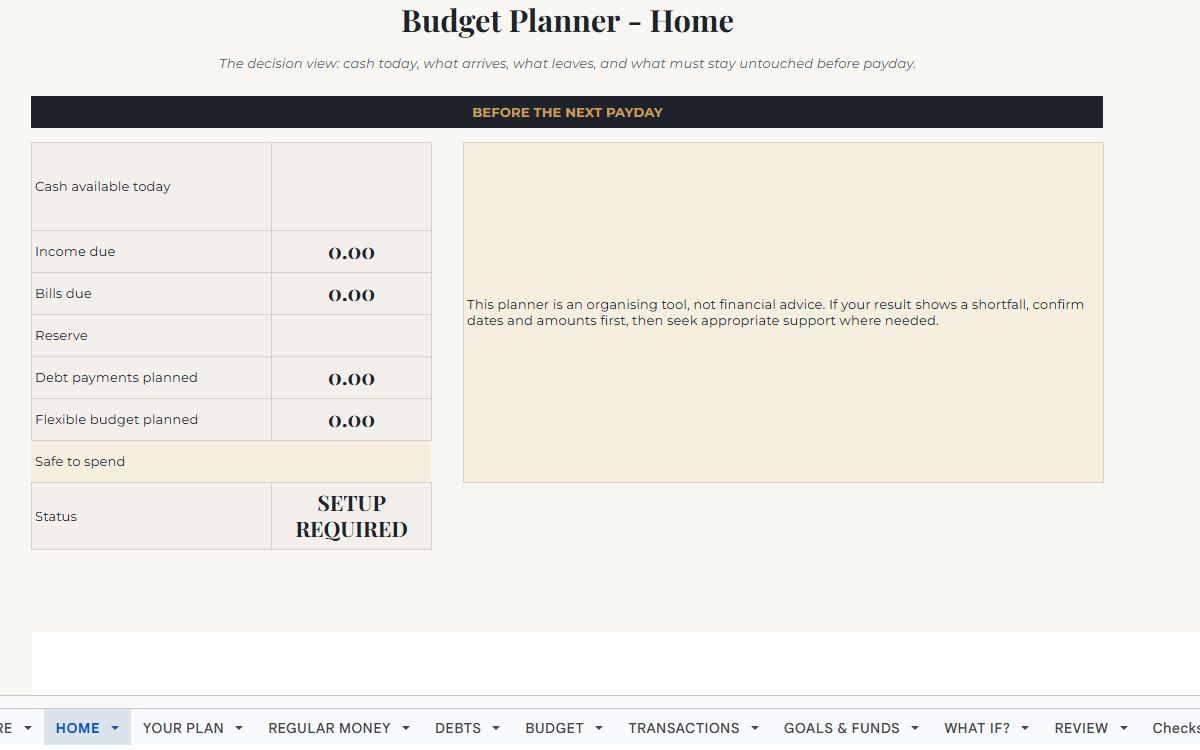
The Budget Planner dashboard preview
Actual dashboard screenshot. View full size
How to use it

See how the pieces connect
before you start.

Start with the dates and money available now, then add recurring income, bills, debts and everyday spending. HOME stays focused on the decisions that matter before the next payday.

Income, bills, debts, everyday spending, transactions and goals feed one main view. The What If? page lets someone test a change without damaging the real plan.

Organising tool only โ€” not financial advice.

Workbook guide

What every tab actually does.

11 customer-facing tabs explained from the working master, not a mock-up.

01
Workbook tab

START HERE

What it is for

The workbook map and simplest route through the budget system.

What you do here

Use it to understand the intended order: YOUR PLAN, REGULAR MONEY, DEBTS + BUDGET, TRANSACTIONS, then HOME + WHAT IF?. It also explains the visual convention that cream cells are editable and soft-stone cells are calculated.

What happens automatically

This is an instruction page rather than a calculation page.

02
Workbook tab

HOME

What it is for

The main decision view for the period before the next payday.

What you do here

Check cash available today, income due, bills due, money reserved, planned debt payments, planned flexible budget, safe-to-spend and the overall setup/status message.

What happens automatically

The values are pulled from YOUR PLAN, REGULAR MONEY, DEBTS and BUDGET. It is designed to keep timing visible rather than treating a monthly total as though every dollar is available today.

03
Workbook tab

YOUR PLAN

What it is for

The date, currency and starting-cash setup for the current budget period.

What you do here

Enter country/region, currency symbol or code, date order, a real date inside the budget month, cash available today, the reserve that should not be spent and the next payday.

What happens automatically

These settings control the month being reviewed and give HOME the boundaries it needs to calculate what is due before payday.

04
Workbook tab

REGULAR MONEY

What it is for

The recurring income and bill schedule.

What you do here

For each item, enter whether it is income or a bill, its real frequency, amount, one known next date, optional end/expiry, whether it is essential and any notes. Leave End blank for ongoing items.

What happens automatically

The sheet derives a monthly equivalent for comparison and determines whether the next occurrence falls before the payday set in YOUR PLAN.

05
Workbook tab

DEBTS

What it is for

A simple record of minimum debt commitments and any optional extra amount you intend to pay.

What you do here

Record debt name, starting balance, interest rate, minimum payment, optional extra payment, current balance and notes.

What happens automatically

Planned payment combines the minimum and chosen extra amount so HOME can include the commitment in the pre-payday position. The planner does not provide repayment advice.

06
Workbook tab

BUDGET

What it is for

The flexible category plan for the selected month.

What you do here

Enter the planned amount for categories such as groceries, transport, health, subscriptions, eating out and other household areas. Use notes where useful.

What happens automatically

Actual spending is pulled from Transactions for the selected month, then Remaining and Status compare the plan with what has actually been recorded.

07
Workbook tab

TRANSACTIONS

What it is for

The actual-money ledger used by the monthly review and category tracking.

What you do here

Enter a real date, choose Income, Expense or Transfer, choose a category, enter a positive amount, and optionally add account/method and notes.

What happens automatically

The transaction type determines how the amount is treated. Expense transactions feed category actuals and monthly review totals; income transactions feed monthly income reporting.

08
Workbook tab

GOALS & FUNDS

What it is for

A place for sinking funds, irregular future costs and savings goals so they are visible before they become surprises.

What you do here

Record the goal/fund, target amount, current amount, target date, intended monthly contribution and notes.

What happens automatically

The sheet calculates the gap to target and makes planned monthly contributions available to the wider review of commitments.

09
Workbook tab

WHAT IF?

What it is for

A sandbox for testing one change without rewriting the real plan.

What you do here

Enter a possible extra income amount, unexpected expense, extra debt payment or extra savings contribution.

What happens automatically

Scenario safe-to-spend recalculates from those temporary inputs while the real plan remains unchanged.

10
Workbook tab

REVIEW

What it is for

A compact monthly review that separates what was planned from what actually moved through Transactions.

What you do here

Review transaction income, transaction expenses, planned flexible budget, planned debt payments, goal contributions and safe-to-spend. The extra check/action/owner/notes columns can be used for a manual monthly review routine.

What happens automatically

The current-month values are collected from the planning and transaction tabs so the month can be reviewed in one place.

11
Workbook tab

Checks

What it is for

A build-integrity page for verifying the workbook is still in a valid state.

What you do here

Most users should not need to edit it. Use it only to identify where a broken date, negative reserve or invalid transaction amount needs fixing.

What happens automatically

It runs workbook-level checks and reports PASS or the location that needs attention.

Back to the collection

Compare the other
Sorelium planners.

View all digital products