← Digital Products Small business · Google Sheets

The Small Business Profit Tracker

A clearer way for a small business to see what sold, what it really cost, what profit remains and whether the price covers the assumptions behind the product.

Products & salesDirect + general costsPrice for ProfitOperating profitTax-reserve planning bufferMonthly review
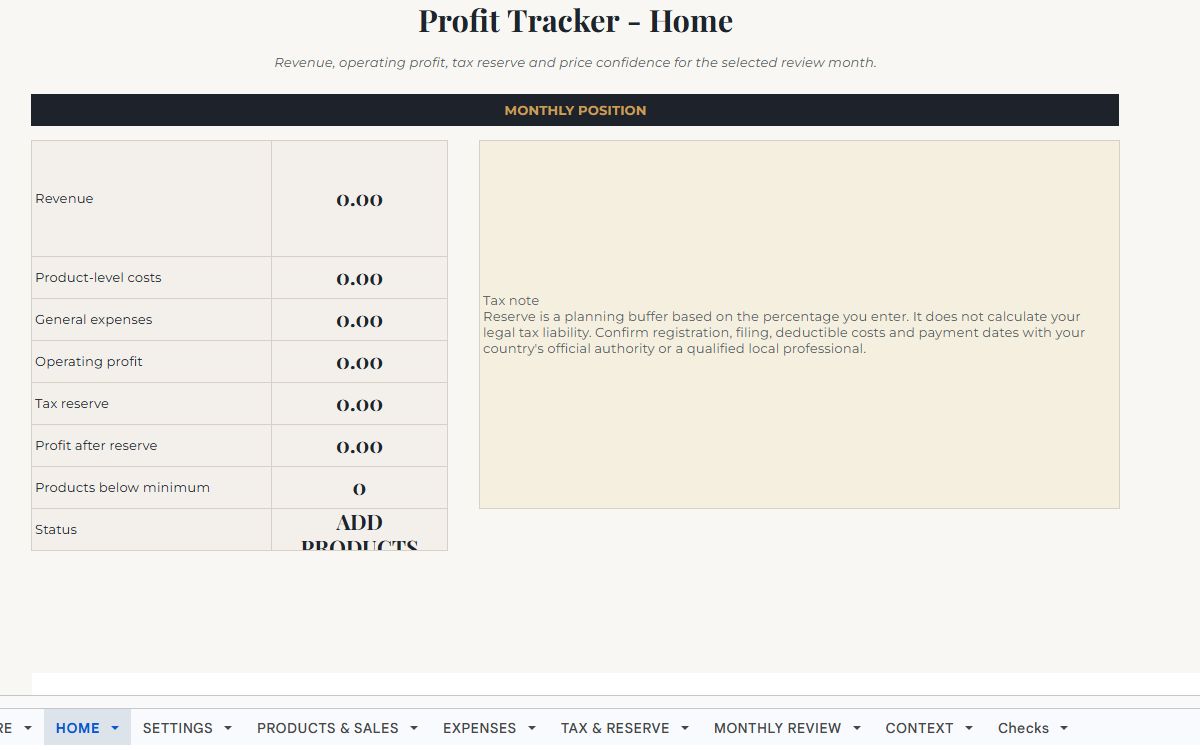
The Small Business Profit Tracker dashboard preview
Actual dashboard screenshot. View full size
How to use it

See how the pieces connect
before you start.

Set the currency and a personal reserve percentage, then record each product or service honestly. General expenses stay separate so the monthly result is easier to understand.

It keeps product costs, labour, overhead, waste or refund allowance and target margin visible without mixing them into general business expenses. The tax reserve is a user-chosen planning buffer, not tax advice.

The tax reserve is a planning buffer, not a calculation of legal tax liability.

Workbook guide

What every tab actually does.

9 customer-facing tabs explained from the working master, not a mock-up.

01
Workbook tab

START HERE

What it is for

The setup-to-review route for the tracker.

What you do here

Follow the intended order: SETTINGS, PRODUCTS & SALES, EXPENSES, HOME + MONTHLY REVIEW, then TAX & RESERVE. The page also shows which cells are editable versus calculated.

What happens automatically

This is an instruction page rather than a calculation page.

02
Workbook tab

HOME

What it is for

The selected-month business position in one screen.

What you do here

Review revenue, product-level costs, general expenses, operating profit, the chosen reserve, profit after reserve, products below minimum and the current status message.

What happens automatically

The dashboard collects the selected review month's product/sales and expense information and applies the reserve percentage supplied by the user. It does not calculate a legal tax liability.

03
Workbook tab

SETTINGS

What it is for

Country-neutral controls for the reporting month and tax-reserve assumption.

What you do here

Enter country/tax jurisdiction, currency, review month, your own tax reserve percentage, owner/business name and any treatment note relevant to your situation.

What happens automatically

The settings control the selected month and reserve shown throughout the workbook. No country tax rate is supplied by the workbook.

04
Workbook tab

PRODUCTS & SALES

What it is for

The core product/service economics table and Price for Profit calculation area.

What you do here

Record product/service, units sold, sale price, direct cost per unit, platform fee percentage, fixed fee per sale, marketing per sale, optional manual overhead, sales date and labour minutes. The wider pricing section can also use shared overhead, target hourly pay, waste/refund allowance and target margin assumptions.

What happens automatically

The sheet calculates revenue, total direct costs and fees, profit before shared expenses and margin. Price for Profit uses the entered cost, labour, overhead, waste/refund and margin assumptions to solve a planning minimum sustainable price.

05
Workbook tab

EXPENSES

What it is for

General business expenses that are not already included as direct per-sale costs.

What you do here

Record date, category, description, amount, tax treatment that still needs confirming, receipt/source and notes.

What happens automatically

Expenses in the selected review month feed HOME and MONTHLY REVIEW as general expenses, keeping them separate from product-level costs.

06
Workbook tab

TAX & RESERVE

What it is for

A planning buffer page for setting aside money from operating profit.

What you do here

Review operating profit and reserve percentage, enter how much has already been reserved, and confirm the jurisdiction shown from Settings.

What happens automatically

The sheet calculates a suggested reserve transfer and reserve gap from the user's own percentage. It deliberately does not act as a tax return or country-specific tax calculation.

07
Workbook tab

MONTHLY REVIEW

What it is for

A twelve-month operating view for revenue, costs and profit movement.

What you do here

Enter a real first day of month in column A for the months you want to review.

What happens automatically

For each month, the workbook fills revenue, product costs, general expenses, operating profit, reserve and profit after reserve from the underlying sales and expense records.

08
Workbook tab

CONTEXT

What it is for

Plain-English definitions for the Price for Profit model so users can see what each assumption means and where its boundary is.

What you do here

Read the definitions for minimum sustainable price, labour allowance, shared overhead allocation, waste/refund allowance and target profit margin. The table shows what the user enters, what the workbook does and what the output does not claim.

What happens automatically

This is explanatory rather than transactional. Its job is to make the pricing model auditable and prevent a planning price from being mistaken for a demand forecast or guaranteed profit.

09
Workbook tab

Checks

What it is for

Workbook integrity and build checks.

What you do here

Most users should leave it alone unless a check fails. It points to the source area that needs fixing, such as an invalid reserve rate, impossible pricing denominator or negative expense.

What happens automatically

It reports PASS when the core assumptions and user-facing safety boundaries remain valid.

Back to the collection

Compare the other
Sorelium planners.

View all digital products