Digital products

Practical tools
I have built for real life.

I currently have four working Google Sheets products. They began as proper tools, not quick templates made to fill a shop. I am checking the details, instructions and buying experience before I call any of them ready.

The Wedding Planner dashboard preview
Wedding planning 01

Google Sheets · In production

The Wedding Planner

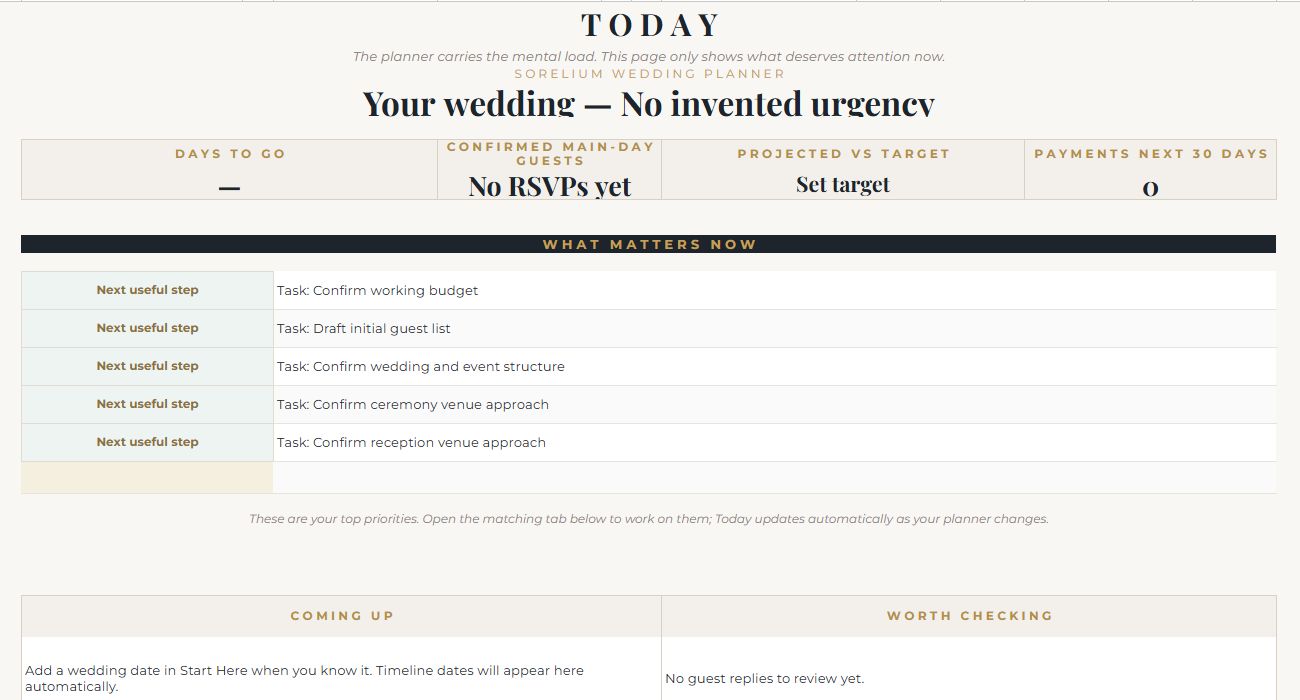
A wedding planner that keeps the guest list, budget, vendors, tasks, wedding-day plan and backups connected without pretending every decision has already been made.

I built it to lower the mental load, not add another complicated system to the wedding. The Today page brings forward what needs attention while the plan is still taking shape.

Today priority dashboardGuests & RSVPsBudget & paymentsVendors & decisionsTasks & timelineWedding Day + Plan B
View build guide →
The Meal Planner dashboard preview
Meal & grocery planning 02

Google Sheets · In production

The Meal Planner

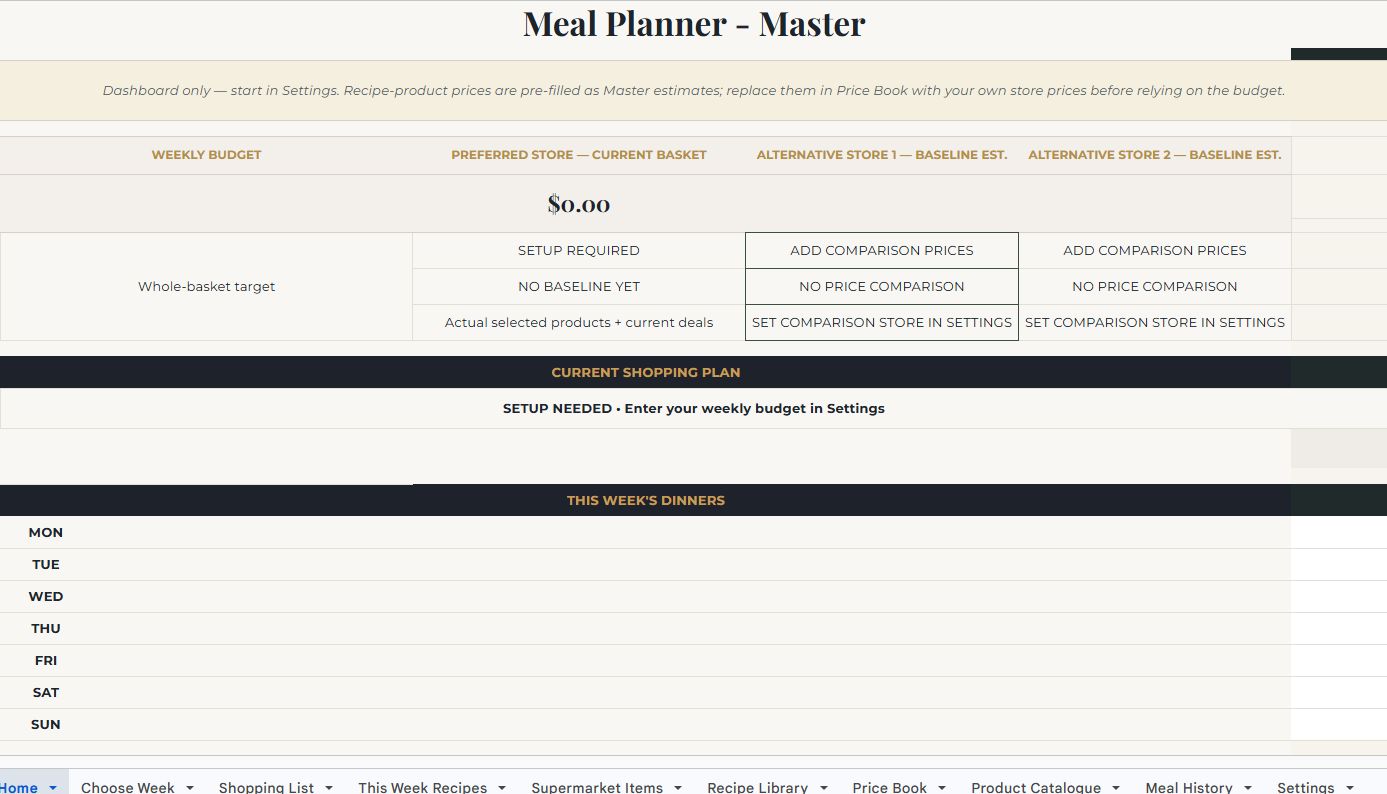
Choose the week's dinners and let the workbook turn them into a shopping list, while keeping recipes, items already at home and the grocery budget connected.

It currently includes 50 dinners and 6 baking recipes. It can plan seven dinners, add up to two baking choices and compare stores when real local prices have been entered.

7-dinner weekly planner50 dinner + 6 baking recipesAutomatic shopping listPrice BookStore-price comparisonsMeal history + on-hand items
View build guide →
The Budget Planner dashboard preview
Personal budgeting 03

Google Sheets · In production

The Budget Planner

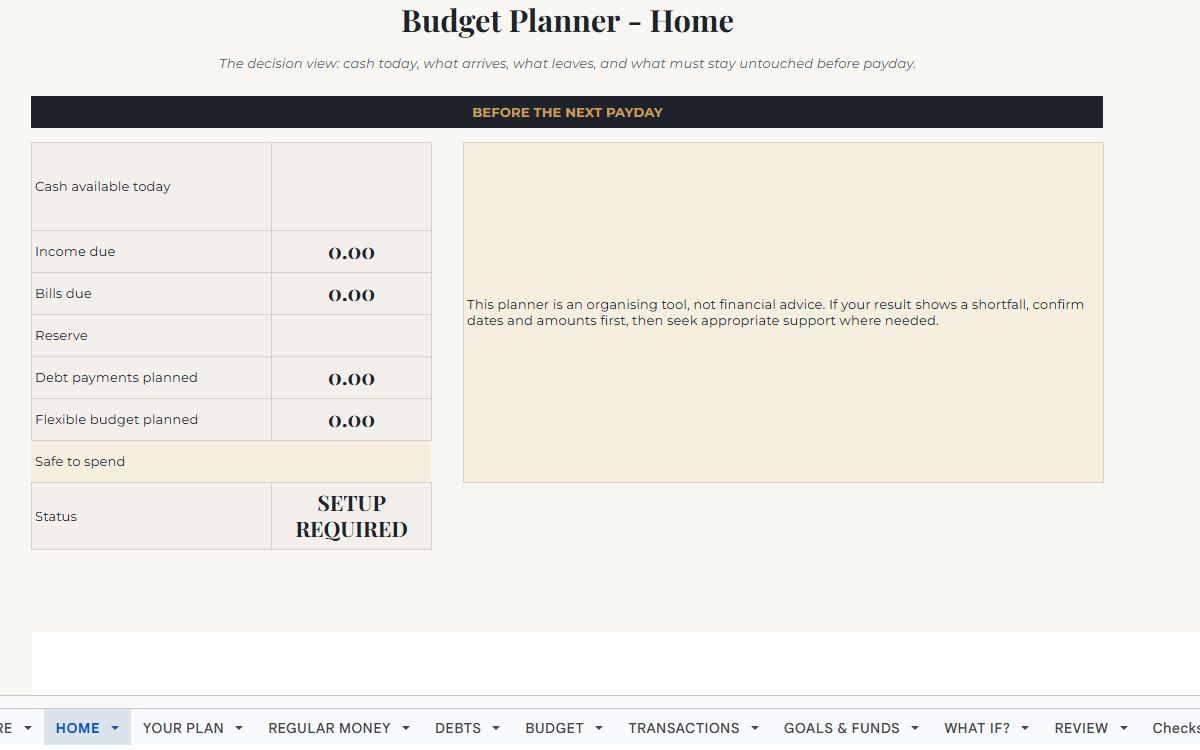
A budget planner focused on the question that usually matters most: what has to happen before the next payday, and what is actually safe to spend?

Income, bills, debts, everyday spending, transactions and goals feed one main view. The What If? page lets someone test a change without damaging the real plan.

Cash-before-payday viewRecurring income & billsDebts + flexible budgetTransactionsGoals & fundsWhat If? scenarios

Organising tool only — not financial advice.

View build guide →
The Small Business Profit Tracker dashboard preview
Small business 04

Google Sheets · In production

The Small Business Profit Tracker

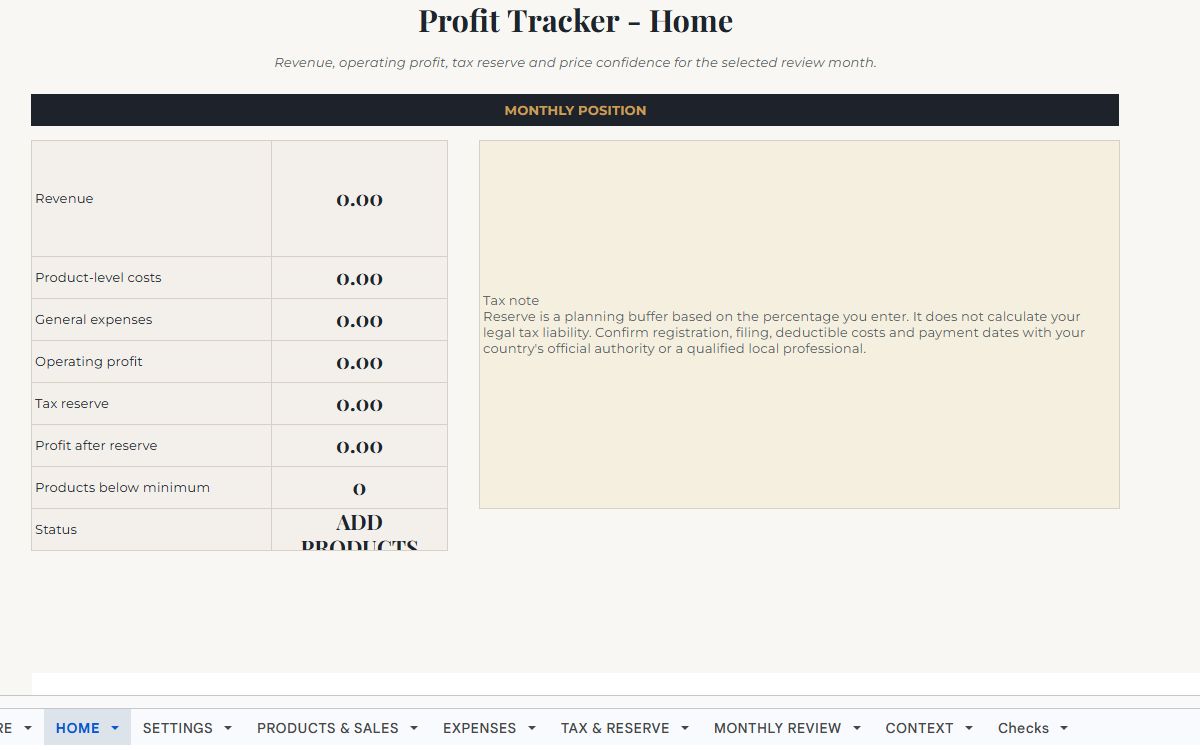
A clearer way for a small business to see what sold, what it really cost, what profit remains and whether the price covers the assumptions behind the product.

It keeps product costs, labour, overhead, waste or refund allowance and target margin visible without mixing them into general business expenses. The tax reserve is a user-chosen planning buffer, not tax advice.

Products & salesDirect + general costsPrice for ProfitOperating profitTax-reserve planning bufferMonthly review

The tax reserve is a planning buffer, not a calculation of legal tax liability.

View build guide →
An honest preview

See what exists now,
while I finish the route to release.

Each guide shows the product as it is now: what every visible tab is for, what a person enters and what the workbook handles automatically. I want the first release to be useful and understandable, not rushed out simply so I can say it is for sale.

← All digital products
Wedding planning · Google Sheets · In production

The Wedding Planner

A wedding planner that keeps the guest list, budget, vendors, tasks, wedding-day plan and backups connected without pretending every decision has already been made.

I built it to lower the mental load, not add another complicated system to the wedding. The Today page brings forward what needs attention while the plan is still taking shape.

Today priority dashboardGuests & RSVPsBudget & paymentsVendors & decisionsTasks & timelineWedding Day + Plan B
The Wedding Planner dashboard preview
Actual screenshot of the current working dashboard. View full-size screenshot
How it works now

Every part,
explained plainly.

Begin with whatever is known on Start Here. The rest can be filled in as decisions become real. Today stays read-only and brings the most useful next actions into one place.

Guide key: each tab below tells you what it is for, what you actually do there, and what the workbook handles automatically.

Availability: this is a real working product, but it is not for sale yet. I am still checking it, and parts may change before release.

01
Workbook tab

0 | Start Here

What this tab is for

The setup page for the whole wedding. It is deliberately designed so you can begin even when the date, venues or format are still undecided.

What you do here

Enter the wedding date when known, ceremony and reception locations, whether they are in the same place, estimated guest count, target spend, optional family contributions, planning stage, wedding type, areas to watch, couple names, currency, date format, optional venue capacity and any extra events.

What updates automatically

These choices feed the rest of the planner. Once a wedding date exists, countdowns and suggested timeline dates can populate; guest-count choices feed cost planning; optional extra-event names become available in RSVP and planning areas.

02
Workbook tab

01 | Today

What this tab is for

The main read-only dashboard. It is meant to answer: what deserves attention now?

What you do here

Normally, you do not edit this page. Use it to check days to go, confirmed main-day guests, projected spend versus target, payments due in the next 30 days, the top current priorities, upcoming items and things worth checking.

What updates automatically

Today updates from the other planning tabs. Task deadlines, RSVP progress, open vendor decisions, budget information and the wedding date are brought together so you do not have to search through the workbook for the next useful step.

03
Workbook tab

02 | Guests & RSVPs

What this tab is for

The master guest list and RSVP tracker. One person gets one row, including plus-ones, so headcounts remain explicit.

What you do here

Record household/group, guest name, invite status, main wedding-day RSVP, optional extra-event RSVPs, age group, plus-one relationship, meal choice, dietary needs, access/support notes, table assignment and general notes.

What updates automatically

The summary counts invited/on-list, confirmed, waiting and declined guests. An RSVP cutoff can appear once a wedding date exists, and guest/catering information can feed the Wedding Day view.

04
Workbook tab

03 | Budget & Payments

What this tab is for

The cost plan and payment control area. It lets an early estimate gradually become a quote and then an actual amount without losing the planning history.

What you do here

For each category or service, enter the vendor/service, charging method, estimate, quote, actual cost, quantity or guest count where relevant, event and notes. Use the payment schedule lower in the sheet to track what has been or still needs to be paid.

What updates automatically

The planner uses the most certain available amount to build projected spend, tracks paid-to-date and outstanding amounts, and can test a different guest count. Chosen vendor quotes can flow into matching budget items when they are recorded in Vendors & Decisions.

05
Workbook tab

04 | Vendors & Decisions

What this tab is for

A comparison and decision log for suppliers and services, without assuming every wedding needs every starter row.

What you do here

Set a decision status, compare up to three options and quotes, then record the selected supplier, selected quote, contact details, email/phone, contract or link, event and notes. Mark irrelevant services as Not needed.

What updates automatically

Open, chosen/booked, still-comparing and not-needed counts update at the top. When a selected supplier and quote match a budget service, the selected quote can update the matching Budget item instead of making you enter the same number twice.

06
Workbook tab

05 | Tasks & Timeline

What this tab is for

The working task list and date-driven planning timeline. The starter tasks are prompts, not rules.

What you do here

For each task, use the suggested date as a guide or add your own real due date, then assign an owner/role, status, event, blocker/waiting-on item and notes. Mark tasks you do not need as Not needed.

What updates automatically

Suggested due dates move with the wedding date. Your own due date takes priority when supplied, and Today uses the task dates and statuses to surface work that needs attention or is coming up.

07
Workbook tab

06 | Wedding Day

What this tab is for

The practical run-of-day page for the ceremony, transitions, reception and guest needs.

What you do here

Add a couple photo if wanted, then build the real schedule using time, event/item, location/venue, people or vendors/contact and notes. Use the ceremony, transition and reception areas to describe how the day actually moves.

What updates automatically

The wedding date and known locations can carry through from Start Here. Catering supplier information and guest catering/dietary needs can appear as vendor selections and RSVPs are completed.

08
Workbook tab

07 | Plan B

What this tab is for

A calm contingency page for the weather, supplier or logistics issues that genuinely need a backup.

What you do here

For each risk worth planning for, record what needs a backup, the current plan, the alternative, the trigger for using it, current status and contact/notes.

What updates automatically

This tab is intentionally simple rather than prediction-driven. It keeps the agreed fallback visible so the wedding-day plan does not depend on remembering it under pressure.

Behind the workbook

The Wedding Planner currently uses only the eight visible planning tabs above; there are no hidden user-workflow tabs in the master.

Back to all products
← All digital products
Meal & grocery planning · Google Sheets · In production

The Meal Planner

Choose the week's dinners and let the workbook turn them into a shopping list, while keeping recipes, items already at home and the grocery budget connected.

It currently includes 50 dinners and 6 baking recipes. It can plan seven dinners, add up to two baking choices and compare stores when real local prices have been entered.

7-dinner weekly planner50 dinner + 6 baking recipesAutomatic shopping listPrice BookStore-price comparisonsMeal history + on-hand items
The Meal Planner dashboard preview
Actual screenshot of the current working dashboard. View full-size screenshot
How it works now

Every part,
explained plainly.

Set up the household and preferred store, replace the starter prices with real local prices, then choose seven dinners. The shopping and recipe pages build themselves around that week.

Guide key: each tab below tells you what it is for, what you actually do there, and what the workbook handles automatically.

Availability: this is a real working product, but it is not for sale yet. I am still checking it, and parts may change before release.

01
Workbook tab

Start Here

What this tab is for

The orientation page and quickest explanation of the intended workflow.

What you do here

Follow the four-step route: set household/store basics, check prices, choose the week, then shop and keep the planner current. It also explains how to add custom dinner or baking recipes and which cells are intended for editing.

What updates automatically

Nothing needs to be calculated here. It acts as the workbook guide and explains that custom recipes also need ingredient mapping before Shopping List can calculate what to buy.

02
Workbook tab

Home

What this tab is for

The read-only weekly dashboard for budget position, store comparison, dinners and the current shopping plan.

What you do here

Use it to see the weekly budget, preferred-store basket, optional alternative-store estimates, budget status, the seven selected dinners and a compact shopping-list view.

What updates automatically

It updates from Settings, Choose Week, Shopping List and Price Book. Store comparisons remain deliberately blank or marked as setup-required until enough local pricing information exists.

03
Workbook tab

Choose Week

What this tab is for

The seven-dinner selector and rotation view.

What you do here

Choose the mode, select a week type such as Best Value, and either accept system suggestions or choose each dinner yourself for Monday through Sunday.

What updates automatically

Selected meals feed Shopping List and This Week Recipes. Estimated ingredient use, last-eaten information and rotation notes become more meaningful as Price Book and Meal History are maintained.

04
Workbook tab

Shopping List

What this tab is for

The main working list for the supermarket trip, including quantities, product choices, budget totals and optional comparison-store information.

What you do here

Review the automatically required dinner items, choose products where alternatives exist and use Adjust Qty only when the calculated pack count needs a manual override. The lower baking controls can add Bake 1 and Bake 2 to the week.

What updates automatically

Dinner quantities come from the selected recipes, Need? reacts to calculated requirement and On Hand, totals compare against the weekly budget, and comparison-store savings/coverage update only when verified alternative prices are supplied.

05
Workbook tab

This Week Recipes

What this tab is for

A read-only recipe-card view for the current week.

What you do here

Open it while cooking to see the seven selected dinners and any chosen baking recipes, with fresh ingredients, pantry/staples and step-by-step instructions.

What updates automatically

Dinner cards update from Choose Week. Bake 1 and Bake 2 update from Shopping List, so you do not need to copy recipes manually into this page.

06
Workbook tab

Supermarket Items

What this tab is for

The household item layer that tracks what the plan needs versus what is already on hand.

What you do here

Most fields are system-driven. Enter On Hand when useful so the planner knows you already have an item; review the preferred product, normal quantity, unit and notes when maintaining the catalogue.

What updates automatically

Item/product information flows from Price Book while dinner and baking requirements calculate planned quantities. The Shopping List can then avoid buying items already available at home.

07
Workbook tab

Recipe Library

What this tab is for

The full dinner and baking catalogue, including favourites, timing, history and cost context.

What you do here

Browse the included 50 dinners and 6 baking recipes, set Favourite = Yes for meals you want favoured more often, and use the reserved blank recipe IDs when adding your own recipes.

What updates automatically

Meal History feeds last-eaten and times-eaten values. Estimated ingredient use and cost band use the ingredient/price setup, while custom recipe shopping quantities require the matching Recipe ID to be mapped to ingredients.

08
Workbook tab

Price Book

What this tab is for

The source of grocery product, pack-size and price information used by the budget calculations.

What you do here

Replace the starter primary-store estimates with your own checked local prices before relying on totals. Add loyalty/member pricing and comparison-store products/prices only when you want those comparisons; leave unknown prices blank rather than guessing.

What updates automatically

The planner chooses the usable primary price, converts pack pricing into meal/shopping cost estimates and feeds Home and Shopping List. Comparison coverage and savings appear only when enough alternative-store data is present.

09
Workbook tab

Product Catalogue

What this tab is for

An extension catalogue for extra brands or pack choices beyond the core Price Book product.

What you do here

Add category, requirement, retailer, brand, product/pack, pack size, unit, pricing method, regular/sale price, deal type, source URL and set Active? = Yes when the option should be available.

What updates automatically

Active catalogue products can become selectable choices in Shopping List. Variable per-kilogram items and fixed pack/bottle items are handled differently using the pricing and pack-size fields.

10
Workbook tab

Meal History

What this tab is for

The feedback and rotation memory for meals you have actually cooked.

What you do here

After a meal, log the date, meal, rating, Favourite?, Have again? and any notes.

What updates automatically

Those records update last-eaten and times-eaten in Recipe Library and give the weekly chooser better information for rotation and preference handling.

11
Workbook tab

Settings

What this tab is for

The household and supermarket setup page that should be completed before relying on the dashboard totals.

What you do here

Enter country/region, weekly budget, household-size reference, primary supermarket, saving threshold, home area, up to two comparison supermarkets and whether loyalty/member pricing is used. Optional product preferences can lock in exact household choices.

What updates automatically

Settings supply regional/currency guidance, budget targets and store labels throughout the workbook. Household size is reference-only: the included recipes are currently written for four people and do not auto-scale.

Behind the workbook

Hidden helper tabs such as _RecipeIngredients, _Lists, _PriceData, _ProductOptions, _ShoppingDropdowns and _WeeklyDeals power the automation. They are not part of the normal user workflow and should not be edited casually.

Back to all products
← All digital products
Personal budgeting · Google Sheets · In production

The Budget Planner

A budget planner focused on the question that usually matters most: what has to happen before the next payday, and what is actually safe to spend?

Income, bills, debts, everyday spending, transactions and goals feed one main view. The What If? page lets someone test a change without damaging the real plan.

Cash-before-payday viewRecurring income & billsDebts + flexible budgetTransactionsGoals & fundsWhat If? scenarios

Organising tool only — not financial advice.

The Budget Planner dashboard preview
Actual screenshot of the current working dashboard. View full-size screenshot
How it works now

Every part,
explained plainly.

Start with the dates and money available now, then add recurring income, bills, debts and everyday spending. HOME stays focused on the decisions that matter before the next payday.

Guide key: each tab below tells you what it is for, what you actually do there, and what the workbook handles automatically.

Availability: this is a real working product, but it is not for sale yet. I am still checking it, and parts may change before release.

01
Workbook tab

START HERE

What this tab is for

The workbook map and simplest route through the budget system.

What you do here

Use it to understand the intended order: YOUR PLAN, REGULAR MONEY, DEBTS + BUDGET, TRANSACTIONS, then HOME + WHAT IF?. It also explains the visual convention that cream cells are editable and soft-stone cells are calculated.

What updates automatically

This is an instruction page rather than a calculation page.

02
Workbook tab

HOME

What this tab is for

The main decision view for the period before the next payday.

What you do here

Check cash available today, income due, bills due, money reserved, planned debt payments, planned flexible budget, safe-to-spend and the overall setup/status message.

What updates automatically

The values are pulled from YOUR PLAN, REGULAR MONEY, DEBTS and BUDGET. It is designed to keep timing visible rather than treating a monthly total as though every dollar is available today.

03
Workbook tab

YOUR PLAN

What this tab is for

The date, currency and starting-cash setup for the current budget period.

What you do here

Enter country/region, currency symbol or code, date order, a real date inside the budget month, cash available today, the reserve that should not be spent and the next payday.

What updates automatically

These settings control the month being reviewed and give HOME the boundaries it needs to calculate what is due before payday.

04
Workbook tab

REGULAR MONEY

What this tab is for

The recurring income and bill schedule.

What you do here

For each item, enter whether it is income or a bill, its real frequency, amount, one known next date, optional end/expiry, whether it is essential and any notes. Leave End blank for ongoing items.

What updates automatically

The sheet derives a monthly equivalent for comparison and determines whether the next occurrence falls before the payday set in YOUR PLAN.

05
Workbook tab

DEBTS

What this tab is for

A simple record of minimum debt commitments and any optional extra amount you intend to pay.

What you do here

Record debt name, starting balance, interest rate, minimum payment, optional extra payment, current balance and notes.

What updates automatically

Planned payment combines the minimum and chosen extra amount so HOME can include the commitment in the pre-payday position. The planner does not provide repayment advice.

06
Workbook tab

BUDGET

What this tab is for

The flexible category plan for the selected month.

What you do here

Enter the planned amount for categories such as groceries, transport, health, subscriptions, eating out and other household areas. Use notes where useful.

What updates automatically

Actual spending is pulled from Transactions for the selected month, then Remaining and Status compare the plan with what has actually been recorded.

07
Workbook tab

TRANSACTIONS

What this tab is for

The actual-money ledger used by the monthly review and category tracking.

What you do here

Enter a real date, choose Income, Expense or Transfer, choose a category, enter a positive amount, and optionally add account/method and notes.

What updates automatically

The transaction type determines how the amount is treated. Expense transactions feed category actuals and monthly review totals; income transactions feed monthly income reporting.

08
Workbook tab

GOALS & FUNDS

What this tab is for

A place for sinking funds, irregular future costs and savings goals so they are visible before they become surprises.

What you do here

Record the goal/fund, target amount, current amount, target date, intended monthly contribution and notes.

What updates automatically

The sheet calculates the gap to target and makes planned monthly contributions available to the wider review of commitments.

09
Workbook tab

WHAT IF?

What this tab is for

A sandbox for testing one change without rewriting the real plan.

What you do here

Enter a possible extra income amount, unexpected expense, extra debt payment or extra savings contribution.

What updates automatically

Scenario safe-to-spend recalculates from those temporary inputs while the real plan remains unchanged.

10
Workbook tab

REVIEW

What this tab is for

A compact monthly review that separates what was planned from what actually moved through Transactions.

What you do here

Review transaction income, transaction expenses, planned flexible budget, planned debt payments, goal contributions and safe-to-spend. The extra check/action/owner/notes columns can be used for a manual monthly review routine.

What updates automatically

The current-month values are collected from the planning and transaction tabs so the month can be reviewed in one place.

11
Workbook tab

Checks

What this tab is for

A build-integrity page for verifying the workbook is still in a valid state.

What you do here

Most users should not need to edit it. Use it only to identify where a broken date, negative reserve or invalid transaction amount needs fixing.

What updates automatically

It runs workbook-level checks and reports PASS or the location that needs attention.

Behind the workbook

The Budget Planner keeps its workbook checks visible so setup problems can be diagnosed, but the Checks tab is not part of the normal day-to-day budgeting workflow.

Back to all products
← All digital products
Small business · Google Sheets · In production

The Small Business Profit Tracker

A clearer way for a small business to see what sold, what it really cost, what profit remains and whether the price covers the assumptions behind the product.

It keeps product costs, labour, overhead, waste or refund allowance and target margin visible without mixing them into general business expenses. The tax reserve is a user-chosen planning buffer, not tax advice.

Products & salesDirect + general costsPrice for ProfitOperating profitTax-reserve planning bufferMonthly review

The tax reserve is a planning buffer, not a calculation of legal tax liability.

The Small Business Profit Tracker dashboard preview
Actual screenshot of the current working dashboard. View full-size screenshot
How it works now

Every part,
explained plainly.

Set the currency and a personal reserve percentage, then record each product or service honestly. General expenses stay separate so the monthly result is easier to understand.

Guide key: each tab below tells you what it is for, what you actually do there, and what the workbook handles automatically.

Availability: this is a real working product, but it is not for sale yet. I am still checking it, and parts may change before release.

01
Workbook tab

START HERE

What this tab is for

The setup-to-review route for the tracker.

What you do here

Follow the intended order: SETTINGS, PRODUCTS & SALES, EXPENSES, HOME + MONTHLY REVIEW, then TAX & RESERVE. The page also shows which cells are editable versus calculated.

What updates automatically

This is an instruction page rather than a calculation page.

02
Workbook tab

HOME

What this tab is for

The selected-month business position in one screen.

What you do here

Review revenue, product-level costs, general expenses, operating profit, the chosen reserve, profit after reserve, products below minimum and the current status message.

What updates automatically

The dashboard collects the selected review month's product/sales and expense information and applies the reserve percentage supplied by the user. It does not calculate a legal tax liability.

03
Workbook tab

SETTINGS

What this tab is for

Country-neutral controls for the reporting month and tax-reserve assumption.

What you do here

Enter country/tax jurisdiction, currency, review month, your own tax reserve percentage, owner/business name and any treatment note relevant to your situation.

What updates automatically

The settings control the selected month and reserve shown throughout the workbook. No country tax rate is supplied by the workbook.

04
Workbook tab

PRODUCTS & SALES

What this tab is for

The core product/service economics table and Price for Profit calculation area.

What you do here

Record product/service, units sold, sale price, direct cost per unit, platform fee percentage, fixed fee per sale, marketing per sale, optional manual overhead, sales date and labour minutes. The wider pricing section can also use shared overhead, target hourly pay, waste/refund allowance and target margin assumptions.

What updates automatically

The sheet calculates revenue, total direct costs and fees, profit before shared expenses and margin. Price for Profit uses the entered cost, labour, overhead, waste/refund and margin assumptions to solve a planning minimum sustainable price.

05
Workbook tab

EXPENSES

What this tab is for

General business expenses that are not already included as direct per-sale costs.

What you do here

Record date, category, description, amount, tax treatment that still needs confirming, receipt/source and notes.

What updates automatically

Expenses in the selected review month feed HOME and MONTHLY REVIEW as general expenses, keeping them separate from product-level costs.

06
Workbook tab

TAX & RESERVE

What this tab is for

A planning buffer page for setting aside money from operating profit.

What you do here

Review operating profit and reserve percentage, enter how much has already been reserved, and confirm the jurisdiction shown from Settings.

What updates automatically

The sheet calculates a suggested reserve transfer and reserve gap from the user's own percentage. It deliberately does not act as a tax return or country-specific tax calculation.

07
Workbook tab

MONTHLY REVIEW

What this tab is for

A twelve-month operating view for revenue, costs and profit movement.

What you do here

Enter a real first day of month in column A for the months you want to review.

What updates automatically

For each month, the workbook fills revenue, product costs, general expenses, operating profit, reserve and profit after reserve from the underlying sales and expense records.

08
Workbook tab

CONTEXT

What this tab is for

Plain-English definitions for the Price for Profit model so users can see what each assumption means and where its boundary is.

What you do here

Read the definitions for minimum sustainable price, labour allowance, shared overhead allocation, waste/refund allowance and target profit margin. The table shows what the user enters, what the workbook does and what the output does not claim.

What updates automatically

This is explanatory rather than transactional. Its job is to make the pricing model auditable and prevent a planning price from being mistaken for a demand forecast or guaranteed profit.

09
Workbook tab

Checks

What this tab is for

Workbook integrity and build checks.

What you do here

Most users should leave it alone unless a check fails. It points to the source area that needs fixing, such as an invalid reserve rate, impossible pricing denominator or negative expense.

What updates automatically

It reports PASS when the core assumptions and user-facing safety boundaries remain valid.

Behind the workbook

The hidden _Tax Guidance tab supports country-neutral guidance internally and is not intended as a user data-entry tab.

Back to all products